
LimbLogic Clinician App
[vc_row][vc_column][vc_column_text]
Getting Started with the LimbLogic® Clinician App
An iOS app is now available for the prosthetist to control LimbLogic.
INSTALL THE APP
- Open the App Store on your iOS device.
- Go to https://itunes.apple.com/us/app/limblogic-cp/id1113684591?mt=8 or search for the LimbLogic CP app shown at right.
- Tap GET to download.
GET STARTED
- Turn the pump on. Wait 5 seconds. Open the LimbLogic app.
[/vc_column_text][/vc_column][/vc_row][vc_row][vc_column width=”1/2″][vc_column_text]2. The initial screen will display the number of pumps in range. Tap + to pair a pump in range
with the app.
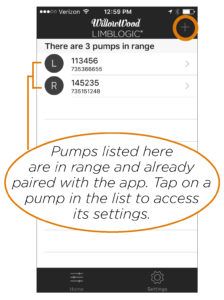
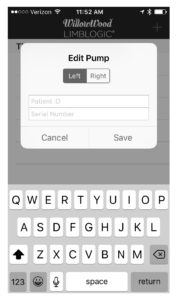
[/vc_column_text][/vc_column][vc_column width=”1/2″][vc_column_text]3. Select Left or Right to indicate which leg the pump is on. Enter the Patient ID and pump
Serial Number. Tap Save.
[/vc_column_text][/vc_column][/vc_row][vc_row][vc_column][vc_column_text]
USE THE APP
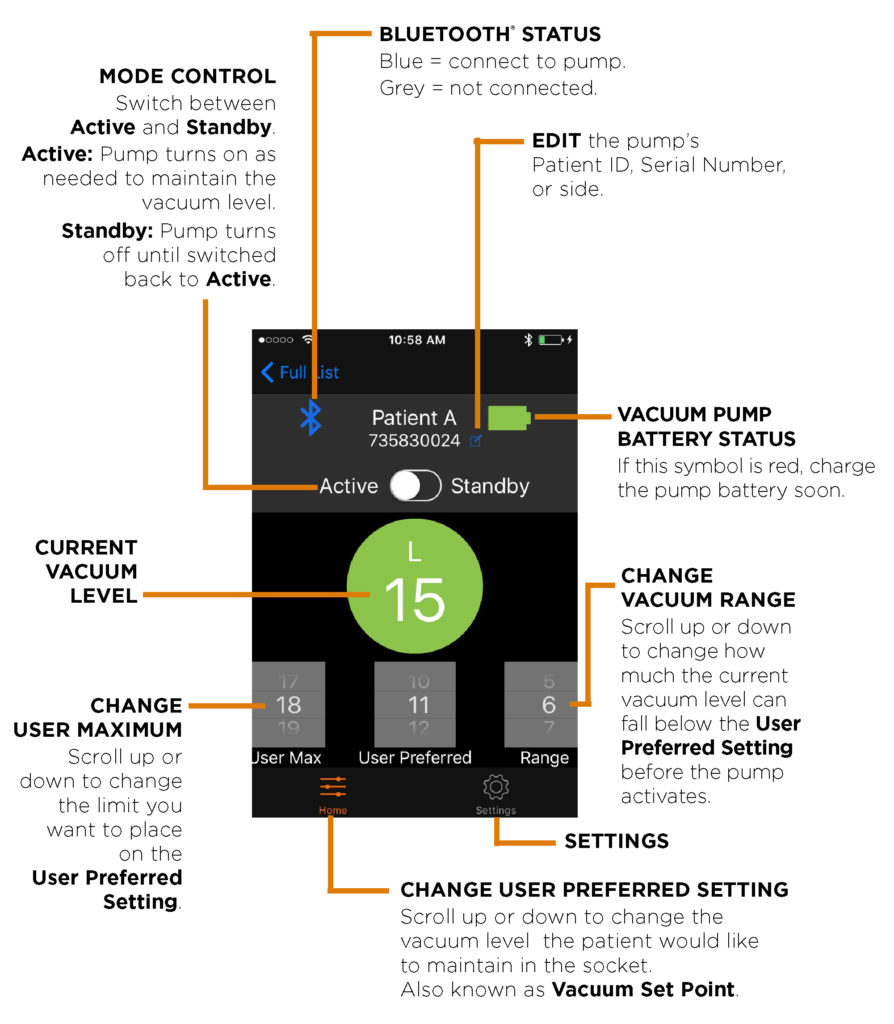
SETTINGS
Tap the Settings icon  to display the following options:
 Tap the HELP icon to view the instruction manual, e-mail a question to WillowWood, or visit the LimbLogic website. You may also choose to Display Help at Startup if desired.
 Tap the ABOUT icon to view information about the revision level of the app.
 Tap the PRIVACY icon to view the Terms & Conditions for the app.
Tap the Settings Screen  icon to exit to the Settings screen.
 The Clinician’s app is intended for certified clinicians and should not be used by untrained users. If you are a patient with a LimbLogic device and wish to link to your pump with a smart device, please download the Patient app.
[/vc_column_text][/vc_column][/vc_row][vc_row][vc_column][vc_column_text]
For a printable version of these instructions, click here.
Please refer to the Prosthetist Instructions for complete LimbLogic® Instructions.
[/vc_column_text][/vc_column][/vc_row]